Push to talk
Are you one of those crazy people who talks to their computer? I am. I got the little wireless mic and I spend most of my day whispering to my laptop like it owes me money. For a while I was telling everyone how much I loved yapping to a computer full time. Everyone. Unprompted.
Anyway.
Lakshay, who sat through at least one of my unsolicited microphone TED talks, saw this tweet and thought of me. Lovely. He meant it as a compliment, I think. Being remembered as the crazy microphone guy was not on my 2026 bingo card.
If you also want to follow in Igor's footsteps and become a keyboard-free computer yapper, here's my recipe. There are probably a thousand others online, like cheesecake, and like a cheesecake blog, I made you read my life story first.
You will need
- A cute wireless mic with a USB receiver. I use the DJI Mic 3 (probably works with yours too). You'll look like you're filming a vlog. You're writing a Jira ticket.
- Karabiner-Elements to catch the mic's button press. Free, a little ugly, beloved by people with strong opinions about Caps Lock.
- A voice capture app. I use Wispr Flow, for now. Superwhisper, MacWhisper, VoiceInk, and Handy (free, open source) also exist, and your Mac has built-in dictation if you're feeling thrifty.
The steps
- Install Karabiner-Elements. macOS will ask for permissions. Then more permissions. Then one more, just to be sure. (macOS does not trust you. Fair.)
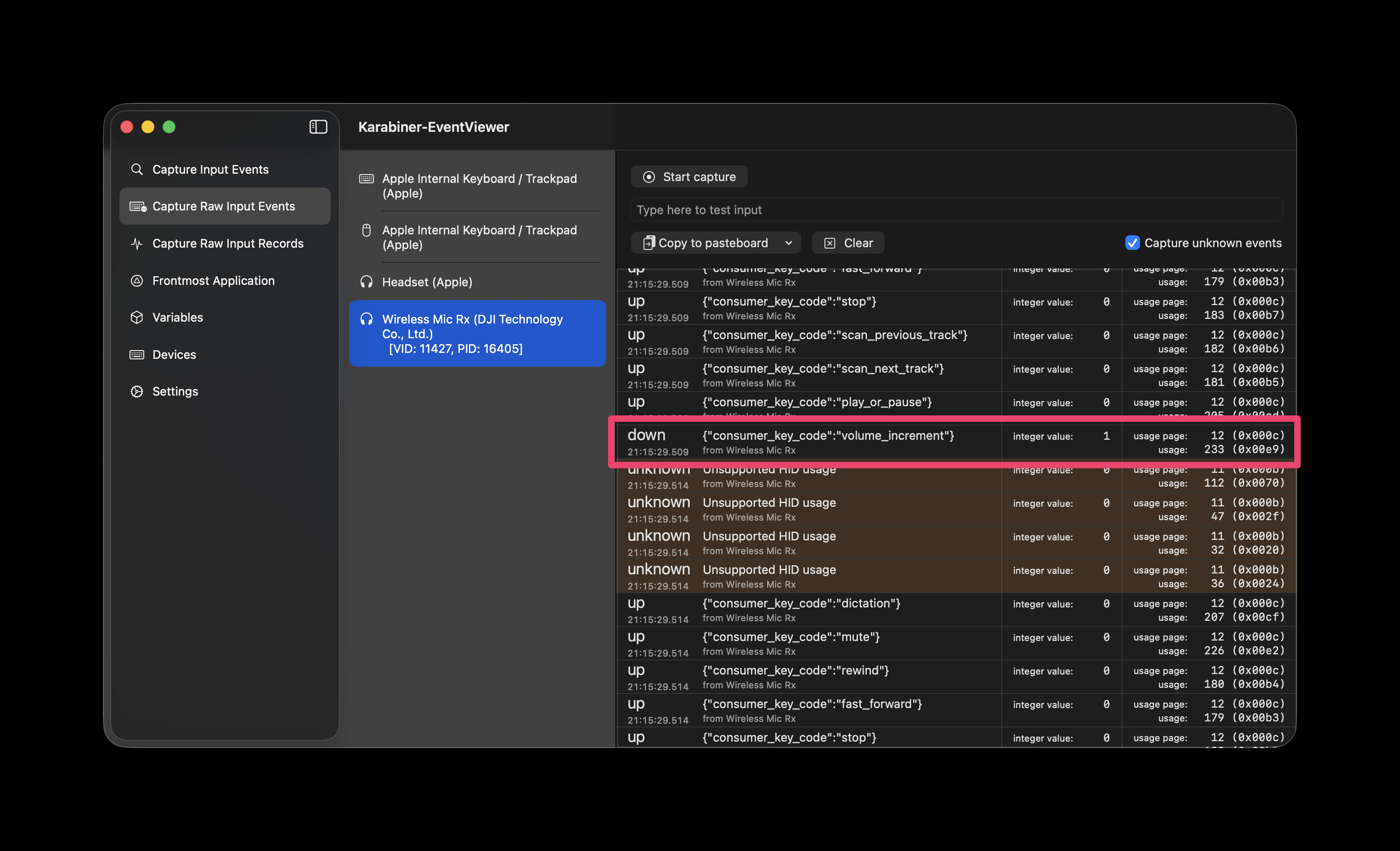
- Plug in the mic's USB receiver and open Karabiner-EventViewer. Go to "Capture Raw Input Events" and find the mic. Write down the vendor ID and product ID. There will be a quiz later.
- Hit "Start capture" and press the button on your mic. A bunch of events will fly by. On the DJI Mic 3, the button shows up as
volume_increment. Your microphone thinks it's a TV remote. That's the one.
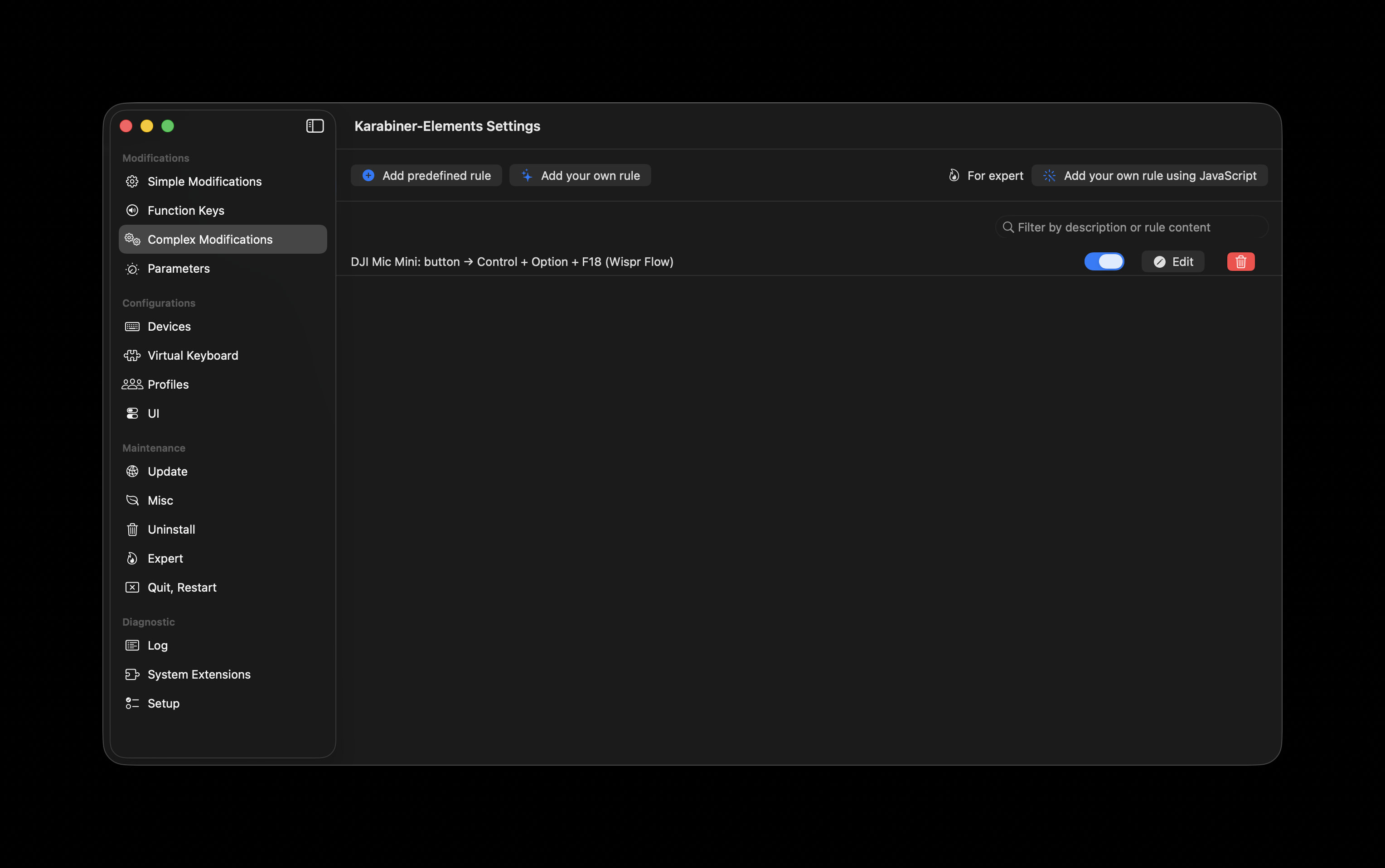
- Open Karabiner-Elements, go to Complex Modifications → Add your own rule, and paste this. Swap in the
vendor_idandproduct_idfrom step 2. Mine won't work for you. (This is the quiz.)
{
    "description": "Mic button → Control + Option + F18 (push to talk)",
    "manipulators": [
        {
            "conditions": [
                {
                    "identifiers": [
                        {
                            "product_id": 16405,
                            "vendor_id": 11427
                        }
                    ],
                    "type": "device_if"
                }
            ],
            "from": { "consumer_key_code": "volume_increment" },
            "to": [
                {
                    "key_code": "f18",
                    "modifiers": ["left_control", "left_option"]
                }
            ],
            "type": "basic"
        }
    ]
}
Why Control + Option + F18? Your keyboard doesn't have an F18. Nobody's does. No app will ever fight you for it. Don't love it? Change the to section to whatever your voice app wants.
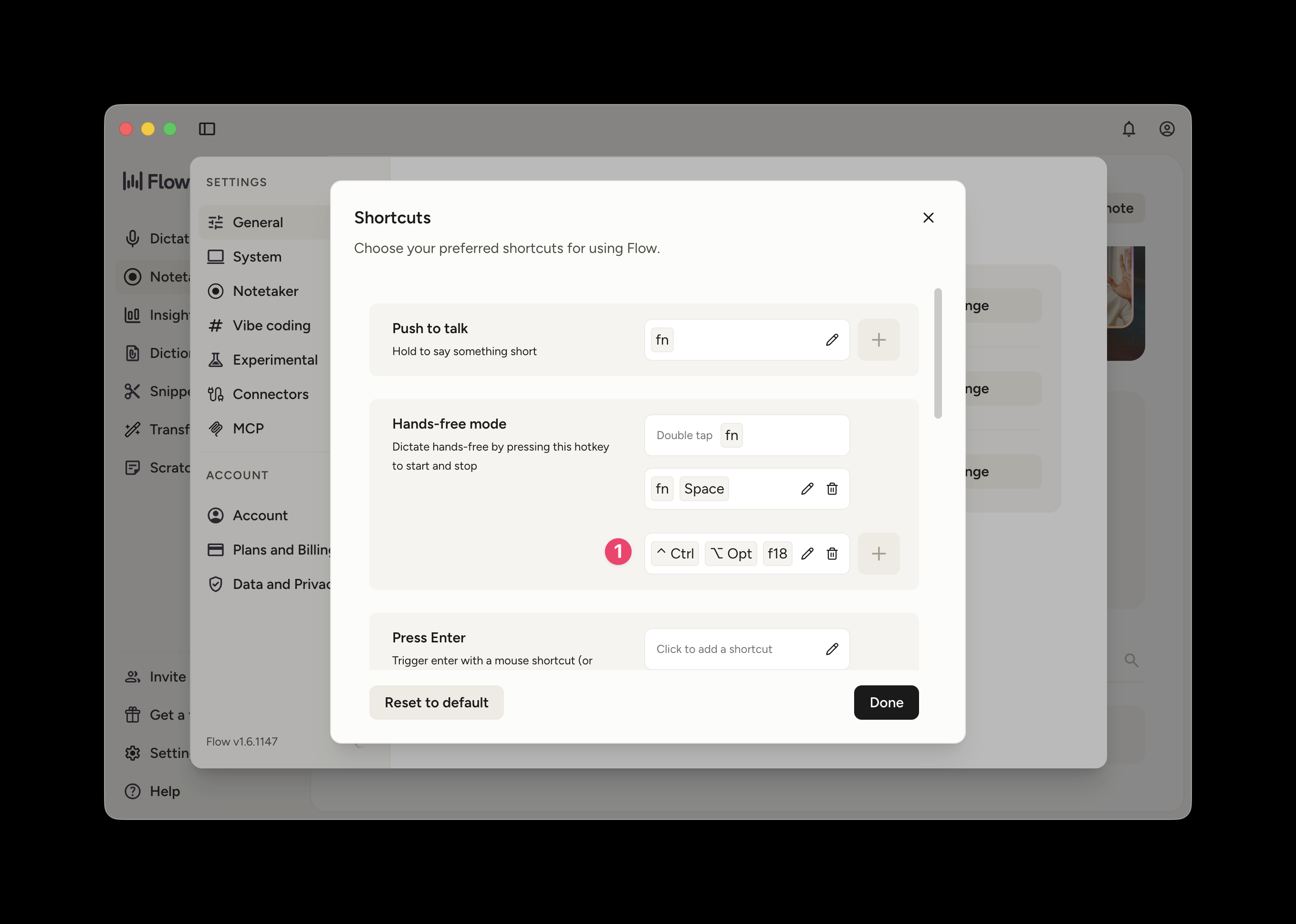
- Set your voice app's shortcut to Control + Option + F18 (or whatever you picked). Every app hides this setting somewhere different. Find it, press the mic button, talk.
That's it. Your keyboard has entered early retirement. (It hasn't. I still type my some of my passwords.)